How You Can Use a Gimp Pen Tool Selection Layer Mask for a Photoshop Elements Background Change
2,058 views · Published 13 November 2018 · 20:23 · Indexed 1 October 2026
Channel: HTG George · 2018 · Education
🔴 Get My Photoshop Elements Courses Here: https://howtogurus.com/photoshop-elements-online-course/
Or get my training on Amazon: https://www.georgepeirson.com/amazon

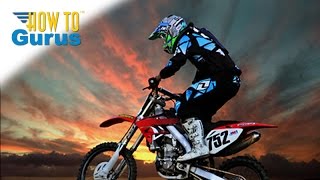
Photoshop Elements and Gimp Paths tool. I show you how you can work around the Photoshop Elements lack of a pen tool by using the Gimp Paths tool to create a curved selection and layer mask. This makes it easy to create layer masks for curved objects to remove the background and change it to a different image. Make a Gimp Pen Tool Selection to create a Layer Mask for Photoshop Elements.

🔴 Get My New Photoshop Elements 2023 Course https://www.georgepeirson.com/Photoshop-Elements-2023

► Free Photoshop Elements Project Downloads: https://www.georgepeirson.com/photoshop-elements-using-gimp-pen-tool-layer-mask

#photoshopelements2021
#photoshopelementstutorial
#photoshopelements2022
#photoshopelements2020
#photoshopelements
#photoshop
#adobe
#elements
#georgepeirson
#howtogurus
More from this channel
-
 4:59
Adobe Photoshop Noise Reduction Tutorial - Image Noise Reduction using Photoshop Noise Filters
4:59
Adobe Photoshop Noise Reduction Tutorial - Image Noise Reduction using Photoshop Noise Filters
-
 4:49
Adobe Lightroom 4 5 6 Tutorial Importing - How to import into Lightroom
4:49
Adobe Lightroom 4 5 6 Tutorial Importing - How to import into Lightroom
-
 2:58
Corel Draw Text : How to put Text on a Path : CorelDRAW Tutorial
2:58
Corel Draw Text : How to put Text on a Path : CorelDRAW Tutorial
-
 36:27
How You Can Change a Boring Sky to an Exciting Sunset with Adobe Photoshop
36:27
How You Can Change a Boring Sky to an Exciting Sunset with Adobe Photoshop
-
 28:39
How You Can Make Cartoon Style Text in Photoshop Elements
28:39
How You Can Make Cartoon Style Text in Photoshop Elements
-
 19:32
How Make a Carved Wood Text Effect in Photoshop Elements
19:32
How Make a Carved Wood Text Effect in Photoshop Elements
-
 13:58
How You Can Give a Photo a Soft Focus Background with Photoshop
13:58
How You Can Give a Photo a Soft Focus Background with Photoshop
-
 12:35
How You Can Make a Night Effect and Turn Day to Night with the Photoshop Lighting Effects Filter
12:35
How You Can Make a Night Effect and Turn Day to Night with the Photoshop Lighting Effects Filter