Excel Magic Trick 975: 7 Keystrokes to Enter an Excel Formula, including Array Formulas.
4,274 views · Published 6 November 2012 · 7:44 · Indexed 12 November 2026
Channel: excelisfun · 2012 · Education
Download Excel Start File: https://people.highline.edu/mgirvin/YouTubeExcelIsFun/EMT971-975.xlsx

Download Excel File: http://people.highline.edu/mgirvin/ExcelIsFun.htm
Entering formulas:
1. Enter: puts the item in the cell and moves the selected cell down.
2. Tab: puts the item in the cell and moves the selected cell to right.
3. Shift + Tab: puts the item in the cell and moves the selected cell to left.
4. Shift + Enter: puts the item in the cell and moves the selected cell up.
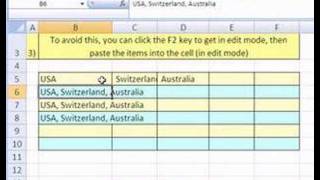
5. When one cell is selected, Ctrl + Enter: puts the item in the cell and keeps the cell with the item selected.
6. When more than one cell is selected, Ctrl + Enter: puts the item simultaneously into all the selected cells at once.
7. Ctrl + Shift + Enter is the special keystroke for certain "Array Formulas" that is used to enter the array formula into the cell. For certain array formulas, if you don't use this keystroke you will get a #VALUE! error or an implicit intersection answer (potential incorrect answer). When you use this keystroke, curly brackets are put around the formula. These curly brackets cannot be typed in. For certain array formulas the "Ctrl + Shift + Enter" is your way of telling Excel to make an array calculation. The curly brackets are Excel's way of telling you that it understood that this was an array formula.
More from this channel
-
 3:51
YouTubersLoveExcel#19: Steady Growth Cash Flow Formula
-
 3:44
YouTubersLoveExcel#26: Text To Column Trouble
-
 3:41
YouTubersLoveExcel#26.2: Formulas do not like TEXT Time
-
 3:30
YouTubersLoveExcel#34: Hide Columns Copy Problem
-
 9:27
YouTubersLoveExcel#31: Dates, Cash Flow & Logic
-
 1:57
YouTubersLoveExcel#36: VLOOKUP increase based on Rating
-
 7:38
YouTubersLoveExcel#52: VLOOKUP & Workbook References
-
 1:39
YTLE#60: Hide Columns by Grouping