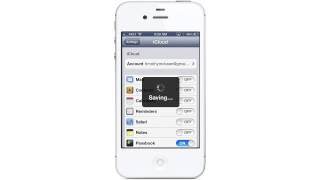
How to Transfer Contacts to iPhone and iPad from Gmail
2,467 views · Published 21 July 2013 · 1:26 · Indexed 12 November 2026
Channel: iPhone, iPad and Android Tutorials from HowTech · 2013 · Howto & Style
In this tutorial you will learn how to transfer contacts to the iPhone from gmail.

Don't forget to check out our site http://howtech.tv/ for more free how-to videos!
http://youtube.com/ithowtovids - our feed
http://www.facebook.com/howtechtv - join us on facebook
https://plus.google.com/103440382717658277879 - our group in Google+

This tutorial will show you how to transfer contacts to iPhone from gmail. This step is very helpful in merging both your gmail contacts with your already existing ones on your iPhone. We will be adding our contacts through Microsoft Exchange.

Step #1 -- Tap Settings Icon

Then scroll down until you can see the Mail, Contacts, Calendars tab.

Step #2 -- Tap Mail, Contacts, Calendars

This is where all of the email accounts associated with our iPhone exist.

Step #3 -- Tap "Add Account"

Step #4 -- Select Microsoft Exchange

Step #5 - Enter Gmail Account Credentials

Enter your email and password. You also have the option of giving the account a name.

Step #6 -- Enter Server

It will then ask you for a server name. Type m.google.com

Step #7 -- Tap Next

Step #8 -- Sync Contacts

A screen will then appear asking if you want to sync mail , contacts, and calendars. Tap the "off" button next to contacts.

Step #9 -- Tap "Keep on My iPhone"

A pop up screen will appear asking what you would like to do with the existing contacts on your iPhone. Since we are simply merging them together, tap "Keep on My iPhone".

Step #10 -- Tap "Save"

You have now successfully transferred your Gmail contacts to the iPhone.

Leave your comments below or contact us by email. This was a Howtech.tv tutorial. Thanks for watching!