How To Use Eye Dropper Tool For Web Design | Adobe Photoshop CC 2015 Tutorial 2017 Part - 12/48
1,346 views · Published 13 June 2016 · 2:07 · Indexed 9 October 2026
Channel: Bring Your Own Laptop · 2016 · Howto & Style
Full course at: https://goo.gl/xpb2xZ
Free Exercise Files: https://goo.gl/VA5jMW
Free Cheat Sheet: https://goo.gl/nZCbHK

How to use eye dropper tool for web design  Adobe Photoshop CC 2015

======================================================
Video Transcript:

0:00 Kia ora youtubers my name is Dan and this
0:03 video here is one of the free ones that
0:04 a giveaway is part of my logic or so if
0:06 you are keen and you do enjoy it check
0:09 out there'll be a link in the
0:10 description but for now let's go off and
0:12 look at the free stuff in this video
0:16 we're going to look at some of the
0:17 essential shortcuts you need in terms of
0:19 dealing with layers now layers panel see
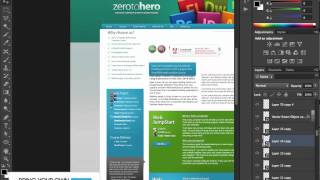
0:21 down here I've working on a final an
0:23 image here and you can see the layers
0:25 have been built up over time and there
0:27 are hundreds of them now so it's not
0:29 really practical to go through and try
0:32 and remember the names of them also know
0:33 which layer you're working on so you
0:35 need a trick the best one and the one
0:37 that I use constantly is that make sure
0:39 you and your move tool okay and make
0:42 sure that your move tool is set to layer
0:44 now what will happen is you're going to
0:46 learn a little short coat okay so we're
0:48 on some random layer at the moment I
0:50 want to click this word that says more
0:52 now i'm going to zoom a little bit to
0:54 select more what i need to do is hold
0:56 down the command key okay on a Mac or
0:58 the ctrl key on a PC and what you'll
1:01 notice is that can you see up on the top
1:03 app bar changes this thing called auto
1:05 select it just kind of toggles it on
1:06 while you need it okay so if I hold down
1:09 the command key and I click the word
1:10 more you see in my layers panel at jump
1:12 to the more and I can move this around
1:14 then say I want to move the green box as
1:16 well I'll hold down my command key and a
1:18 little auto select ogle comes on I click
1:20 on this and even though it's got some
1:22 random name called rectangle too I could
1:25 still move it around okay so i can click
1:27 more move him across click the rectangle
1:29 move them across hold down let's make
1:31 awesome and it's just a really easy way
1:34 to pick the layers and move them around
1:36 and really essential when you are
1:38 working on such a layer heavy document
1:39 i'm going to go to hit it step backwards
1:43 in it step backwards edit step backwards
1:46 another useful shortcut is if you've got
1:48 a really complex set of layers and all
1:50 on top of each other it's really hard to
1:51 select the one you want what you can do
1:53 is let's pretend for a second there to
1:56 see this image in the background here I
1:57 want to select say using this little
1:58 area here but I can't because there is a
2:01 black box in front of it okay so if i
2:03 use my command click trick it's going to
2:05 click this rectangle every time okay of
2:07 course i could pick down here but that
2:08 runs my example what i can do is if i
2:11 right click
2:12 okay if I right click and if you're on a
2:15 Mac you don't have a right click you
2:16 control click but if you're on a PC it's
2:18 easy to right click and you'll notice
2:20 that it picks everything in my little
2:21 layer order here so that's the one that
2:23I was that's the black rectangle
2:24 underneath it though something called
2:26 layer 2 and that is my little image
2:28 another useful shortcut that you're
2:30 gonna need is if you're using say my
2:32 template and you're using the column
2:34 grids okay and you need to be able to go
2:36 to view show guides and these can be
2:40 really great when you're lining things
2:41 up but real pain when you're trying to
2:43 look at things visually because it kind
2:44 of ruins the look of everything with the
2:45 lines everywhere so the shortcut for
2:47 this if you're on a Mac its command and
2:49 use the colon key on your keyboard if
2:51 you're on a PC it's come control and
2:53 colon and you toggle these on and off I
2:56 do this quite a bit when i'm working
2:57 with these grids or the Monta line
2:59 things up and then I turn it off again
3:00 when I'm trying to look at things and

======================================================

Facebook:https://www.facebook.com/BringYourOwnLaptop
G+: https://plus.google.com/+ByolAuAdobe
Twitter: https://twitter.com/danlovesadobe/
Pinterest: https://www.pinterest.com/byolaptop/
Website: https://www.bringyourownlaptop.co.nz/
Course Url: https://goo.gl/lQKAZr

======================================================
Trending topic on youtube

#Adobe #Photoshop #Tutorial
#HowtoDesignaWebsiteinPhotoshop
#PhotoshopTutorial
#CC_2015
#DesignAWebsite
#Eye_Dropper_Tool

Thanks and Subscribe Channel
More from this channel
-
 5:43
Photoshop training courses - Advanced Layers with Dan.
5:43
Photoshop training courses - Advanced Layers with Dan.
-
 3:52
Adjusting Content - InDesign CC Tutorial [7/20]
3:52
Adjusting Content - InDesign CC Tutorial [7/20]
-
 3:19
Should you use a local or a .com domain name for your business - Buying a domain name [3/9]
3:19
Should you use a local or a .com domain name for your business - Buying a domain name [3/9]
-
 5:27
How to buy domain name from GoDaddy - Buying a domain name[7/9]
5:27
How to buy domain name from GoDaddy - Buying a domain name[7/9]
-
 5:03
How to buy a domain name from someone - Buying a domain name [8/9]
5:03
How to buy a domain name from someone - Buying a domain name [8/9]
-
 3:48
Photoshop CC 2015 Web Design Tutorial | Clipping Mask in Photoshop for Websites - 31/48
3:48
Photoshop CC 2015 Web Design Tutorial | Clipping Mask in Photoshop for Websites - 31/48
-
 2:41
Photoshop CC 2015 web design tutorial - Tips for Zooming & Navigating Your Document Part 9/48
2:41
Photoshop CC 2015 web design tutorial - Tips for Zooming & Navigating Your Document Part 9/48
-
 3:27
Photoshop CC 2015 Web Design Tutorial - Layer Shortcuts you need to know Part 11/48
3:27
Photoshop CC 2015 Web Design Tutorial - Layer Shortcuts you need to know Part 11/48